© Other

Lastest Updates

Get all Lastest Tips, Tricks and Tutorials. And Supports from us .

Hacking

Hacking Truths, Tricks and Tutorials. Get free tools what you need for Hacking.

Traffic

Over load your website with traffic. We also provide you traffic , web views and page views tricks and tips.

Need Help

We provide you 24x7 hour helps via Facebook Group, Contact Pages or direct email id admin@o2tricks.in

Join Us

Please Subscribe us, Connect with us at Facebook Page, Follow us on Twitter .

Showing posts with label Facebook. Show all posts

How To Find the Profile ID In Facebook?

10:12 |

Hi readers,  

After writing  How to create Facebook apps and update status using it? .....

Now I'm going to write How to find profile id in Facebook? ... :D


How To Find the Profile ID In Facebook:

Finding the Profile ID of those users who haven’t changed their User ID number with the username.
  • Login to your Facebook Account and open Profile page of the user.
  • Now just look at the URL in the address bar it will be something like this
http://www.facebook.com/profile.php?id=123456789
Read More

How to create Facebook apps and update status using it?

10:06 |

Hi readers,  

After writing  Disable Email notification on facebook. .....

Now I'm going to write  How to create Facebook apps and update status using it... :D

Whenever you update your status using mobile it show which mobile you have...
SO, this trick help you to change mobile icon in updating status..


How to Create Facebook App and Update Status Using it:

  • Login to your Facebook Account and go to this link
  • Now in Request and Permission window click on Allow button.
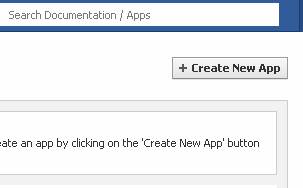
  • Developer window will open , just click on Create new App button at top right corner of the page.
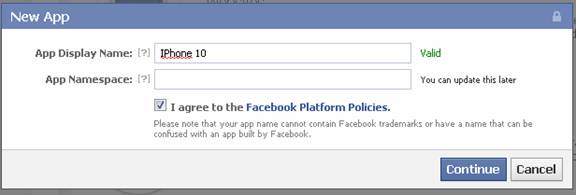
  • In App Dispaly Name field give the name of the device via which you want to update your status and check Facebook Policy box.
122 How to Create Facebook App and Update Status Using it
  • Click on Continue button and fill the Facebook Captcha code.
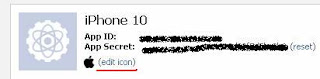
  • Now your created app page will open. To give it a realistic look upload an icon related to your device by clicking on Edit Icon button.
13 How to Create Facebook App and Update Status Using it
  • Now open a new tab in your browser and copy/paste the following link


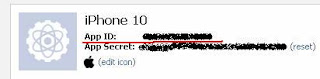
  • Note your App ID from your created app and hit Enter.
14 How to Create Facebook App and Update Status Using it
  • Write your status and it will be updated via your device name.

Hope you like this one....

For more tips, trick and tutorial . Subscribe IT.

Please give me your feedback in comment box...
Read More

Disable Email notification on facebook.

04:27 |

Hi readers,  

After writing  Limit your Chat Availability on Facebook. .....

Now I'm going to write  How to disable email notification on facebook... :D


Facebook

Steps to Disable Facebook Email Notification:-


  • 1.Login into your Facebook Account and Go to Account Settings.
  • 2.Choose notifications button from the right side of the left side column.


Disable Facebook Email Notification


  • You can see various kinds of notifications under various categories, you can uncheck them all, or you can keep some some fields checked (depending upon you) according to you need. If you uncheck them all then you will not again receive Email notifications from Facebook.


Disable Facebook Email Notification

Disable Facebook Email Notification


  • After you uncheck all the fields, you will see something like below.


Disable Facebook Email Notification

  • Now save it!!!


  • You are done!!!


Now you will no longer receive Facebook Notifications via Email.

Hope you like this one....

For more tips, trick and tutorial . Subscribe IT.

Please give me your feedback in comment box...
Read More

Limit your Chat Availability on Facebook.

04:25 |

Hi readers,  

After writing  How to add Related posts with thumbnails in blogger......

Now I'm going to write  Limit your Chat Availability ... :D


"Appearing offline to some of your friends on Facebook Chat" might happen in any case when you fought with him/her or you want to chat with one or two people only and do not want to be distracted by others messages. If you want to appear offline to those "NO TO CHAT" people in any case, then facebook has a nice feature which enables you to choose with whom you do not want to chat.


Well, if you are having a lot people in your friend list and would like to chat only with a few real friends and do not want to be distracted by others, this trick may help you in such a case.

Well, you might be aware of the offline/online feature that comes to be offline/online to everyone. So, let us go further.


Steps to Appear Offline to Some of your friends on Facebook:-


(1) Firstly Login into your Facebook Account.

(2) On the homepage, at the left side, Locate Lists and Click on More.


Appear Offline to Some of Your Friends on Facebook Chat


(3) On the next page, Click on Create a list button and give your list a desired name.


(4) You will be redirected to the next page where you will be asked to 
add friends.
Note: Add only those friends with whom you want to appear online to chat.
You will be able to add friends to the list from the right side of your page.


Appear Offline to Some of Your Friends on Facebook Chat


(5) When you are done by adding all your friends to the list with whom you want chat and appear online, Go back to your chat sidebar, and click on the 
settings button and then click on Limit Availability...


Appear Offline to Some of Your Friends on Facebook Chat

(6) Then SelectOnly make me available toand mark the group you just created and Click on OK. That's all.


Appear Offline to Some of Your Friends on Facebook Chat


This makes you appear online to only those friends to which you selected.


Hope you like this one....

For more tips, trick and tutorial . Subscribe IT.

Please give me your feedback in comment box...
Read More

How to Create Facebook App and Update Status Using it

07:20 |

How to Create Facebook App and Update Status Using it


Today, I will be sharing an amazing Facebook Trick by which you can update your status via any device of your choice. You just need to know the name and that's all!! Well, you might be knowing that whenever someone updates his status via any device (like blackberry,iPhone,etc.), it lives a strong impression that the person has that device.  Well, you can even update status using iPhone 10, iPad 3,etc. (Any name of the device of your choice)!!!

Just take the below image as an example:-


Now you might be too curious to know hot to do this.


How to Create Facebook App and Update Status Using it:


  • Make sure that you are logged in to your Facebook Account.

  • Now follow this link.

  • If it opens Request and Permission Window, Click on Allow button.

  • You will be redirected to Developer Window, Click on Create New App Button present at the Top Right Corner of the Page.


How to Create Facebook App and Update Status Using it
  • In App Display Name, Enter the Name of the device with which you want to update your status and Check on I agree to the Facebook Platform Policies.Click on Continue.


How to Create Facebook App and Update Status Using it


  • Now enter the Captcha Code and Click on Continue.

  • Now you have created your app. And you will be redirected to the App Page.

  • Well, if you want to give you status a more realistic look, then upload icon related to your device by clicking on Edit icon. Well, you can get your device icon by searching on Google.


How to Create Facebook App and Update Status Using it

  • Now copy/paste the below link in your Address Bar in a new tab.

http://www.facebook.com/connect/prompt_feed.php?api_key= your App ID number


  • You can get your App ID Number from Created App.


How to Create Facebook App and Update Status Using it


  • So, Now you can update any of your desired Status and it will updated with the Device Name. 

So, it is so simple to do so. Get your device name and Update Status using it and Amaze your friends!!


So, Hope you enjoyed my post!!
Kindly share your views via comments on "
How to Create Facebook App and Update Status Using it"!!
Read More

Timeline closed for few weeks | How to activate facbook timeline... Working.. [O2Trick]

16:24 |

Facebook has introduced a new kind of profile pages called the Timeline. Timeline is a lot more visual than the old profile pages. It’s a moving mosaic of posts, photos, videos, and places that chronicles your life. Unlike the old profile page, which only focuses on the most recent posts, this new profile page is a home for all the stories you’ve already shared. The timeline also allows you to choose what is featured on your profile page. You can star your favorite posts to make them widescreen, or or hide things altogether.


Steps

Timeline won’t be available for a few weeks. But here’s how you can your turn on Facebook Timelime right now.  Simply follow the steps below:
1. First, make sure you’re logged into your Facebook account, and go to the Facebook developer page: Click this link to get started. You will be prompt for a “Request for Permission“. Click “Allow“.
2.  Click “Create New App“.
3.  Give your new app whatever display name and namespace you’d like.  Tick off the “I agree…” checkbox. Then click Continue.
Pass some Captcha security check…
4.   You’ll be taken to this screen. Make sure the App Namespace is filled, and save changes.   And then Click Open Graph on the left pane.
5.   Next screen:  “Get Started with Open Graph”.  Fill in anything you want in the two text fields, then click Get Started.
6.  On this screen,  scroll down to the bottom and click “Save Changes and Next“.  Do the same thing on the next two screen.
7.  You’ll be taken to this final screen:
Do nothing.  Just wait for a few minutes… and then go to your Facebook profile page.  On the top of your profile page, you should see an invite that looks like this:
Activate your new profile page…  and have fun! Don’t forget to share this to your friends.
Read More